
Download the Trackpilots Desktop App
Get started with Trackpilots and streamline your workforce monitoring with ease. Choose your platform and download the latest version.
Supported Platforms & Minimum Specs
Trackpilots runs as a lightweight background agent. These are the minimum requirements for a stable install.
Windows
- ✓Windows 10 or later (64-bit)
- ✓2 GB RAM minimum (4 GB recommended)
- ✓200 MB free disk space
- ✓Internet connection for initial setup

macOS
- ✓macOS 12 Monterey or later
- ✓Apple Silicon (M1/M2/M3) or Intel processor
- ✓2 GB RAM minimum
- ✓200 MB free disk space
Linux
- ✓Ubuntu 20.04 LTS or later / Debian 10+
- ✓64-bit processor required
- ✓2 GB RAM minimum
- ✓200 MB free disk space
- ✓dpkg / apt package manager
How to Install Trackpilots on Windows
- 1
Download the installer
Click the Windows download button above to get the latest
.exeinstaller. - 2
Run the installer
Double-click the downloaded file. If prompted by Windows Defender SmartScreen, click More info → Run anyway.
- 3
Follow the setup wizard
Accept the licence agreement, choose an install directory (default is fine), then click Install.
- 4
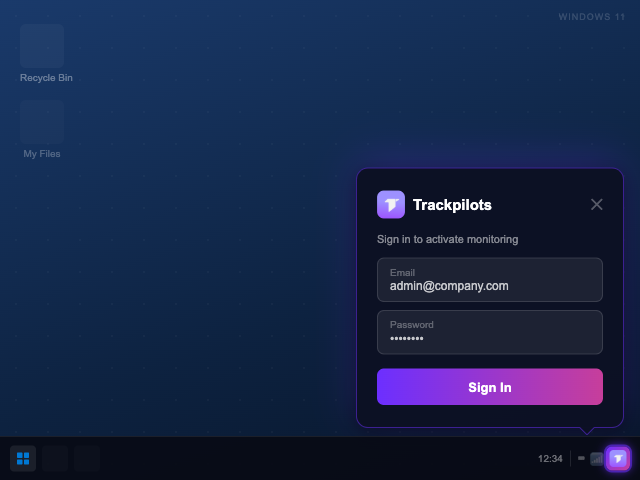
Log in to the app
After installation, Trackpilots opens and shows a login screen. Enter your Trackpilots credentials to activate the agent. Both regular and admin users must log in — your account settings determine the tracking mode.
- 5
App runs in the system tray
Once logged in, Trackpilots minimises to the system tray (bottom-right taskbar). The tracking mode — normal or stealth — is set by your organisation's admin in the web dashboard.
How to Install Trackpilots on macOS
- 1
Download the .dmg file
Click the macOS download button above to get the latest
.dmgdisk image. - 2
Open the disk image
Double-click the downloaded
.dmgfile. A Finder window will open showing the Trackpilots installer. - 3
Run the installer package
Double-click the
.pkginstaller inside the disk image and follow the on-screen prompts. - 4
Grant required permissions
macOS will ask for Accessibility and Screen Recording permissions — both are required for activity tracking. Grant them in System Settings → Privacy & Security.
- 5
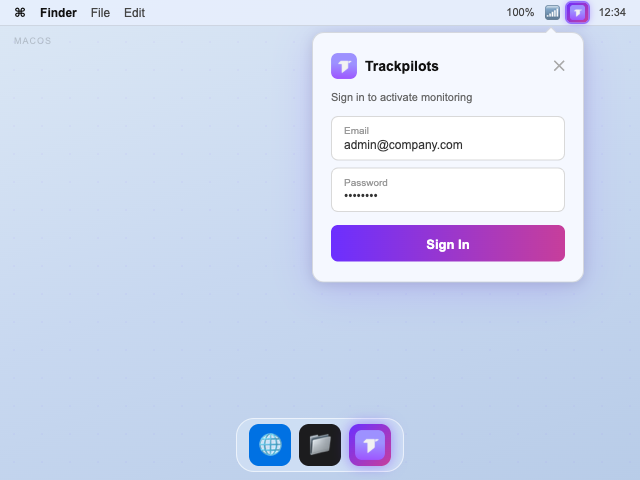
Log in to the app
Trackpilots opens after install and requires a login. Enter your credentials to activate the agent. The app then runs from the menu bar tray. Normal or stealth mode is controlled by your admin settings.
How to Install Trackpilots on Linux
- 1
Download the .deb package
Click the Linux download button above to download the
.debpackage for Debian/Ubuntu-based systems. - 2
Install via apt (recommended)
Open a terminal and run:
sudo apt install ./trackpilots_*.deb - 3
Or install via dpkg
Alternatively:
sudo dpkg -i trackpilots_*.deb && sudo apt-get install -f - 4
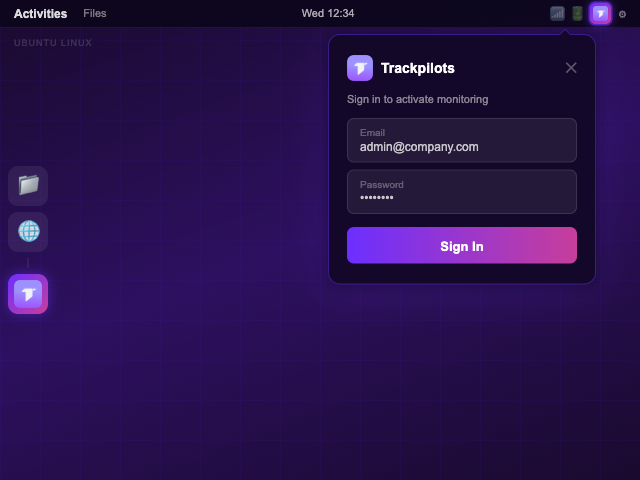
Log in to the app
After installation, launch Trackpilots and enter your credentials to activate the agent. Login is required for all users — your admin account settings determine whether the app runs in normal or stealth mode.
- 5
App runs in the system tray
Once logged in, Trackpilots runs from the system tray and starts automatically on every boot. Verify the agent is active at app.trackpilots.com.
Still Need Help?
Drop us a line at team@trackpilots.com or hit us up in the chat at the bottom right corner, and we'll help you out.