Work From Home Monitoring Software
Trackpilots is work from home monitoring software that automatically tracks every remote employee's login times, active hours, app usage, and screenshots — giving managers full visibility without video calls or manual check-ins. Free for unlimited users.
Automatic Login & Logout Tracking
Screenshots Every 20 Minutes (Free)
Active vs Idle Time Reports
App & Website Usage Monitoring
Works on Windows, Mac & Linux
Unlimited Users
No Credit Card
15-Min Setup
Free Forever
The WFH Accountability Gap
Video calls tell you an employee showed up. They do not tell you what the employee did for the other seven hours of the workday.
Managing a remote team without work from home monitoring software means relying on self-reported timesheets, calendar check-ins, and occasional video calls — none of which produce objective data about how work time is actually spent. The result is a visibility gap that grows with every employee added to the team.
Studies consistently show that remote employees overestimate their productive hours by 20–30% when asked to self-report. This is not dishonesty — it is a natural cognitive bias. People remember the work they did, not the time they spent browsing between tasks. Without passive tracking, managers make personnel and workload decisions based on incomplete information.
WFH employee monitoring replaces guesswork with timestamped data: when each employee started work, how many hours they were actively engaged, which tools they used, and whether there were extended idle periods. This data does not require managers to watch anyone — it surfaces automatically in a daily report.
What to Monitor for WFH Employees
Effective remote work tracking software covers five data points. Together they give managers a complete picture of a remote workday without requiring constant supervision.
Login & Logout Times
Trackpilots records the first keyboard or mouse activity of the day as the shift start and the last activity as shift end — automatically, with no employee input. Late starts, early finishes, and absences appear in the attendance log without manual reconciliation.
Active vs Idle Hours
Total hours logged is not the same as productive hours. Trackpilots distinguishes between minutes with keyboard and mouse activity versus idle periods, so you see how much of the logged shift was genuinely engaged work rather than clock-on time.
Screenshots as Proof of Work
A screenshot every 20 minutes (free plan) or every 60 seconds (Starter Pack) creates a timestamped visual record of what was on each employee's screen. For remote teams, this is the closest equivalent to a manager walking past a desk — objective, verifiable proof of work.
App & Website Usage
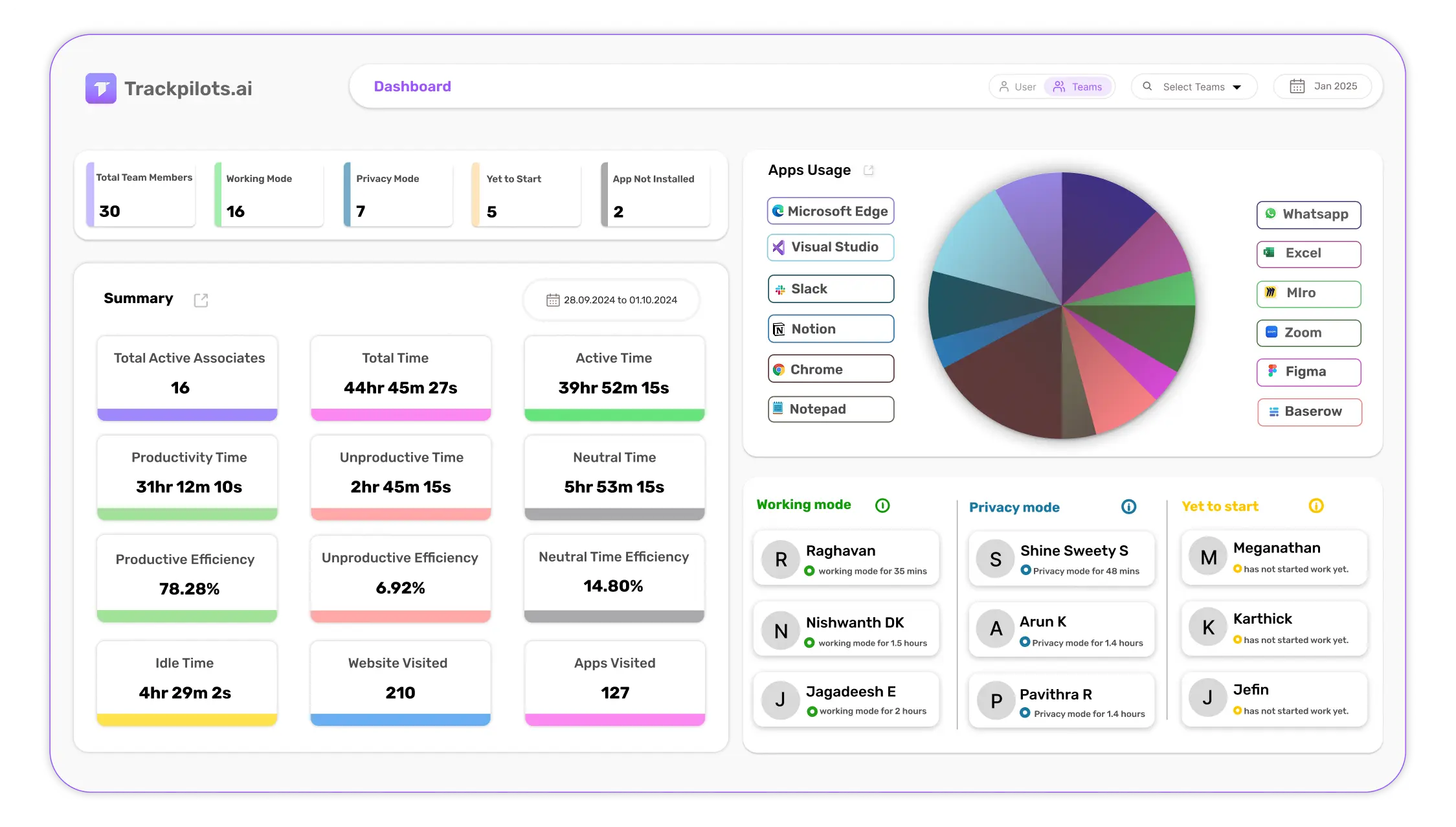
Trackpilots logs every application opened and every website visited during work hours, with time spent on each. Apps are automatically categorised as productive or unproductive per role — so a developer spending 4 hours in VS Code registers differently from the same time in social media.
Idle Time & Inactivity Alerts
When an employee's keyboard and mouse activity falls below a threshold you configure, Trackpilots fires an inactivity alert. This is the only real-time signal in the platform — everything else is delivered as async reports so managers are not watching dashboards all day.
Productivity Score
Each employee receives a daily productivity score combining active time, productive app ratio, and attendance. The score gives managers a single comparable number across the team — useful for spotting performance trends before they become problems.
WFH Monitoring Setup Checklist
Follow these 8 steps to go from zero to a fully running remote work tracking setup — most teams complete this in under 15 minutes.
1. Create your Trackpilots account
Sign up at trackpilots.com/sign-up — no credit card required. Choose the free Basic plan to start. Your manager dashboard is ready immediately after email verification.
2. Add your remote employees
Invite team members by email from the Team Management section. Each employee receives an invitation link to create their login. For teams larger than 10, use the CSV bulk upload to add everyone at once.
3. Send agents the download link
Share the Trackpilots agent download link with your team via email or Slack. The agent is available for Windows, macOS, and Linux. Installation takes under 3 minutes and requires no technical expertise.
4. Each employee installs the agent
Employees click the installer, follow two prompts, and the agent starts automatically. No reboot required. Tracking begins as soon as the agent is running — the first login time is captured within seconds.
5. Configure screenshot frequency
In the manager dashboard under Settings, set how often screenshots are captured. The free plan captures every 20 minutes. The Starter Pack allows 1-minute intervals for roles requiring more granular visual proof of work.
6. Set work schedule hours
Configure your team's shift hours so monitoring only runs during contracted work time — not evenings or weekends. This is both a legal best practice and a trust-building measure that reassures employees the software respects off-hours privacy.
7. Classify apps as productive or unproductive
In the App Categories section, mark which applications are productive for each team role. A CRM is productive for sales; YouTube is not. This classification drives the productivity score and makes the active-time breakdown meaningful per role.
8. Review your first report
After the first working day, open the manager dashboard. You will see attendance records, active hours, top applications, and a screenshot gallery for each employee. This baseline data lets you identify any immediate attendance or activity issues — and gives you a benchmark for week-over- week comparisons.
How to Monitor Without Micromanaging
The most common concern managers raise about WFH employee monitoring is that it will damage trust. The concern is valid — but it applies to a specific kind of monitoring, not to monitoring itself.
Micromanagement happens when managers watch live dashboards, react to individual data points (an employee who went idle for 20 minutes on a Tuesday), and send messages in real time based on what they see. This surveillance behaviour destroys autonomy and focus — the two things that make remote work effective.
Automated reporting is the alternative. Trackpilots delivers a daily summary of each employee's attendance, active hours, and productivity score — without requiring managers to log in during the day. A 15-minute weekly review of these summaries replaces daily check-in meetings and surfaces the people who need attention based on sustained patterns, not individual moments.
Weekly reviews, not daily surveillance
Look at weekly summaries to identify trends — three consecutive days of low active hours, or a consistent late-start pattern. Individual data points are noise; weekly patterns are signal.
Use data to open conversations, not close them
When monitoring flags an issue, the next step is a curious conversation — "I noticed your active hours have been lower this week, is there a blocker?" — not an accusation. Data starts the dialogue; it does not end it.
Share the data with employees
Trackpilots gives employees access to their own productivity data. When employees can see the same dashboard their manager sees, monitoring becomes a shared performance tool rather than one-sided surveillance.
Configure inactivity alerts, not live watching
Set inactivity thresholds (e.g. alert after 60 minutes of no activity during shift hours). Alerts fire only when something meaningful happens — you are notified once rather than checking a live feed all day.
What Employees See vs What Managers See
Transparency about monitoring scope removes the fear that drives resentment. Here is exactly what is visible to each side.
What Managers See
Login and logout times per employee per day
Total active hours vs idle hours each shift
Screenshots captured at configured intervals
Applications and websites used, with time on each
Daily and weekly productivity scores per employee and team
What Employees See (Their Own Data)
Their own attendance log — login and logout times
Their own active hours and idle time breakdown
Their own screenshots — the same images managers see
Their own app usage summary and productivity score
Not visible: other employees' data, screenshots, or scores
Trackpilots only monitors activity during configured shift hours. It does not capture activity outside working time, personal device usage, webcam footage, or keystroke content. Managers cannot enable monitoring on personal devices — the agent is designed for company-owned hardware only. For full legal guidance on monitoring employees working from home in your jurisdiction, consult local employment law before deploying.
Frequently Asked Questions
What is the best work from home monitoring software?
Trackpilots is the best work from home monitoring software in 2026. It tracks attendance, active hours, app usage, and screenshots automatically — and it is the only platform with a permanently free plan for unlimited users. Setup takes under 15 minutes.
How do I monitor employees working from home without invading privacy?
Disclose monitoring in employment contracts before deployment, restrict tracking to scheduled work hours, and give employees access to their own data. Trackpilots supports all three — it monitors only during configured shift hours, and employees can view their own productivity dashboard at any time.
Can I monitor WFH employees for free?
Yes. Trackpilots' free plan supports unlimited users with no expiry date. It includes automatic attendance tracking, screenshots every 20 minutes, app and website monitoring, and a full productivity dashboard — all at zero cost, no credit card required.
Is remote work tracking software legal?
Yes, in most countries monitoring on company-owned devices is legal when employees are informed in advance. Trackpilots recommends including a monitoring disclosure in employment contracts or an acceptable-use policy before deploying the agent. Consult your employment lawyer for jurisdiction-specific requirements.
Monitor Your WFH Team Free
Trackpilots gives managers full visibility into remote employee attendance, active hours, screenshots, and app usage — automatically, without video calls or manual check-ins. Free for unlimited users. Setup takes 15 minutes. No credit card required.
Monitor Your WFH Team FreeCompare PlansUnlimited Users
No Credit Card
15-Min Setup
Free Forever
Still Need Help?
Drop us a line at team@trackpilots.com or hit us up in the chat at the bottom right corner, and we'll help you out.